How to Automatically Reboot a LoRaWAN Gateway When the Internet Drops
Install and configure Watchcat on a compatible Dragino gateway to monitor Internet connectivity and reboot the gateway after a sustained outage.
Restore Gateway Connectivity Without a Site Visit
A gateway can occasionally retain power and local network access while losing its route to the Internet. Watchcat periodically tests a known Internet host and reboots the gateway only when that connection remains unavailable for the configured period.
This procedure is intended for compatible Dragino LoRaWAN gateways using the legacy Watchcat implementation shown below. Schedule a maintenance window because the final step deliberately reboots the gateway and briefly interrupts LoRaWAN packet forwarding.
The supplied example uses Dragino OpenWrt 18.06 with Watchcat 1-7.
Connect through the gateway access point, LAN port or the same routed network.
Use the current root password. The published default applies only if it has not been changed.
The gateway needs Internet and DNS access while updating and installing the package.
Firmware compatibility: newer OpenWrt Watchcat releases use the separate
/etc/config/watchcat configuration and commonly use the
ping_reboot mode. Confirm the gateway firmware before applying the
legacy system.@watchcat commands in this bulletin.
1. Connect to the Dragino Gateway Using SSH
Connect the computer and gateway to the same local network, then open an SSH client such as PuTTY. Use the gateway's current IP address and administrator credentials.
Typical Dragino SSH Details
- Address: the gateway IP address;
10.130.1.1is commonly used for a direct local connection. - Port:
22through the gateway access point or local interface; many Dragino models use2222through the WAN interface. - Username:
root - Password:
draginoif the default password has not been changed.
Change the default password after confirming access. If neither SSH port responds, verify the gateway IP address, connection method and model-specific firmware documentation before continuing.
2. Update the Package List and Install Watchcat
Refresh the opkg package list first, then install Watchcat. Select a
command below to copy it to the clipboard.
Update the Package List
Run this command and allow it to complete before installing the package.
Install Watchcat
Install the network watchdog package from the configured package feed.
Do not continue if opkg update reports that it cannot resolve or
reach the package server. Correct the gateway's Internet, DNS or system-time
problem first.
3. Configure the Internet Outage Timeout
The following legacy Dragino settings ping Google's public DNS address every two minutes. Watchcat reboots the gateway when no reply has been received for 30 minutes, then allows a 60-second delay before forcing the reboot.
Enter the Watchcat Commands
Run the commands in order. Each control copies one complete command.
The Internet must remain unreachable for this period before a reboot is initiated.
Watchcat tests the configured host at this interval while monitoring connectivity.
The network must permit Internet Control Message Protocol echo requests and replies.
This delay is applied before Watchcat performs the forced reboot action.
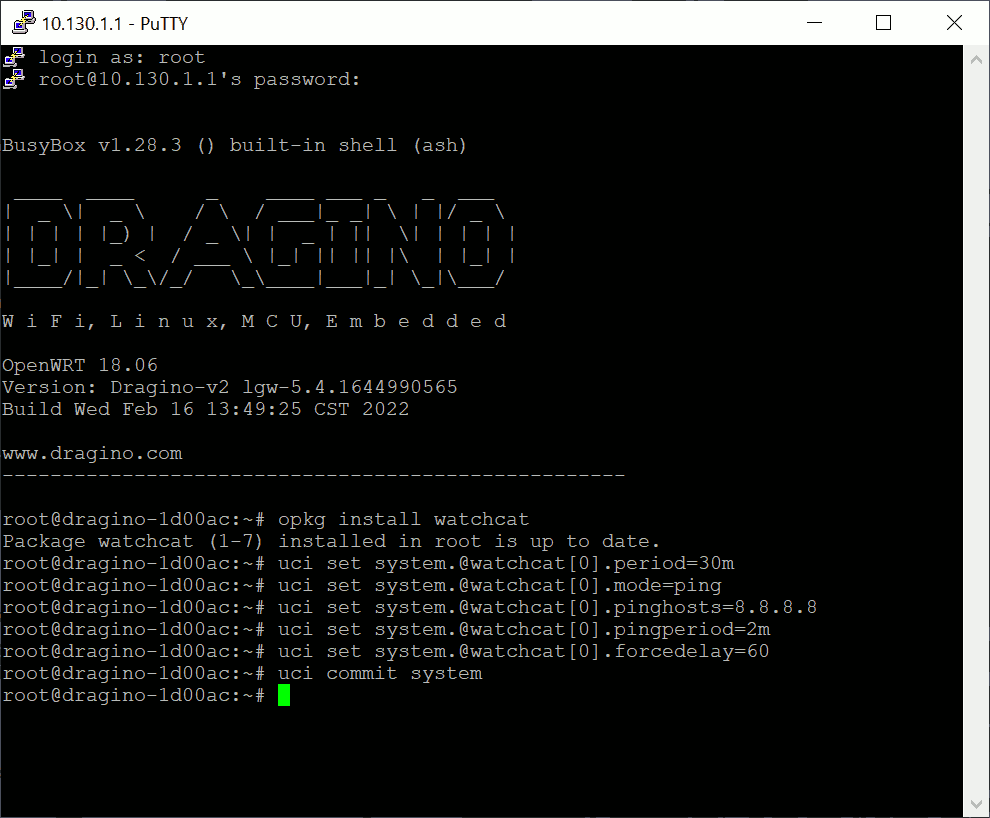
Ensure the selected ping host is consistently reachable from the gateway. If Internet Control Message Protocol traffic is blocked, Watchcat may treat a working connection as failed and reboot unnecessarily.
4. Reboot the Gateway and Verify Watchcat
Reboot the gateway to apply the configuration. Wait for it to return online, reconnect through SSH and confirm that the Watchcat process is running.
Reboot the Gateway
Check the Watchcat Process
After reconnecting through SSH, run:
Expected Legacy Output
The process identifier and memory values can vary, but the timeout values should resemble:
1590 root 1200 S /bin/sh /usr/bin/watchcat.sh period 1800 60 8.8.8.8 120
1800is the 30-minute outage period in seconds.60is the forced reboot delay in seconds.8.8.8.8is the monitored Internet host.120is the two-minute ping interval in seconds.
A process result confirms that Watchcat is running; it does not prove that the reboot condition works on the current network. Test the behaviour only during an approved maintenance window and ensure the gateway returns to the Telemetry2U network afterwards.