How to Install the Telemetry2U App on Android, iPhone and iPad
Add the Telemetry2U Progressive Web App to your phone or tablet for quick access from an app icon, then enable push notifications for real-time sensor alerts.
Before Installing the Telemetry2U App
Telemetry2U is installed directly from the website rather than an app store. The installed Progressive Web App (PWA) opens from your device's app launcher or Home Screen and uses the same Telemetry2U account as the standard web interface.
Installing the app and enabling notifications are separate tasks. After the app is installed, register the device under App Notifications and ensure the required Notification Groups are configured to send app alerts.
Use an existing account or register for a free trial.
Use Google Chrome on Android or Safari on an iPhone or iPad.
Update the device operating system and browser before installation.
Web Push requires iOS or iPadOS 16.4 or later and a Home Screen web app.
1. Install the Telemetry2U App on Android
Use Google Chrome to install Telemetry2U as a web app on an Android phone or tablet.
- Open telemetry2u.com in Google Chrome.
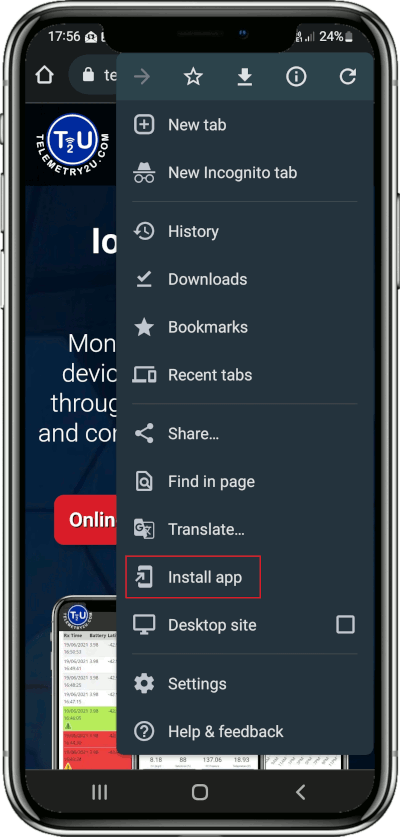
- Tap the Chrome menu beside the address bar.
- Select Install app. On some Chrome versions, select Add to Home screen, then Install.
- Follow the confirmation prompt to complete the installation.
- Open the device's app list and select the Telemetry2U icon.
- Sign in to your account. Select Remember Me when appropriate for the device.
Remember Me troubleshooting: If the sign-in does not persist,
check that Chrome is permitted to store cookies and site data for
telemetry2u.com. The exact settings path varies between
Chrome and Android versions.
2. Install the Telemetry2U App on iPhone or iPad
On Apple mobile devices, install Telemetry2U from Safari using the Add to Home Screen command.
- Open telemetry2u.com in Safari.
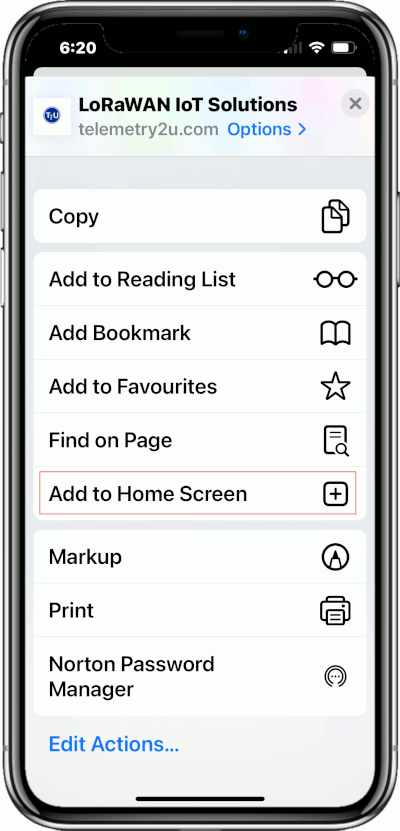
- Tap the Share button.
- Scroll through the actions and select Add to Home Screen.
- If Safari displays an Open as Web App option, leave it enabled.
- Confirm the displayed app name, then select Add.
- Open the Telemetry2U icon from the Home Screen and sign in.
Important for Apple notifications: On iOS and iPadOS, Web Push is available to web apps added to the Home Screen on version 16.4 or later. Opening Telemetry2U only in a normal Safari tab is not sufficient for app push notifications.
3. Enable and Test Telemetry2U Push Notifications
Register each phone, tablet or browser that should receive Telemetry2U app notifications. Notification permission must be granted separately on every device.
- Open the installed Telemetry2U app and sign in.
- Open Accounts from the main menu.
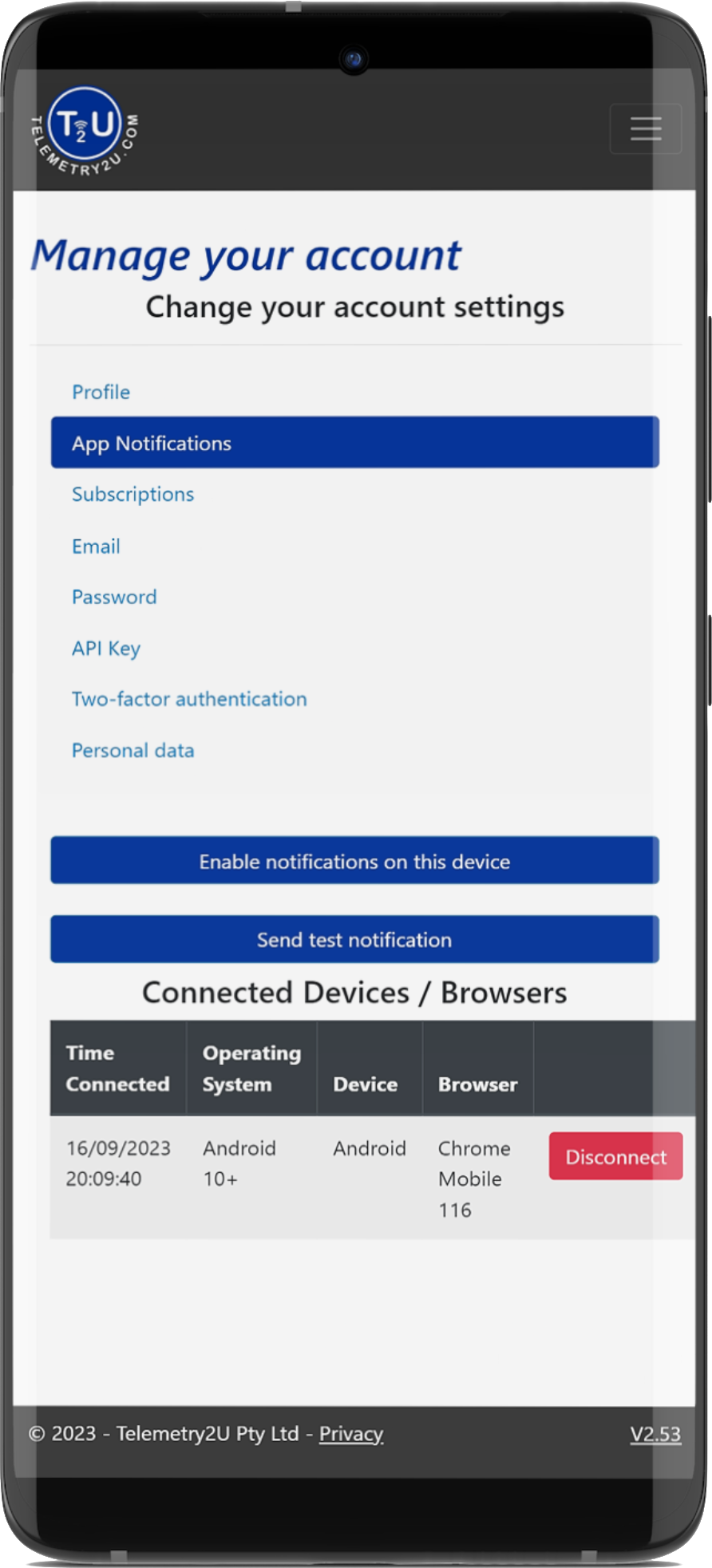
- Select App Notifications.
- Select Enable notifications on this device.
- Accept the notification permission request from the browser or operating system.
- Select Send test notification and confirm that the test appears on the device.
- Confirm that the device is listed under Connected Devices / Browsers.
Complete the alert configuration: Registering the device does not automatically subscribe it to every sensor alert. Edit the required Notification Groups and enable App Notifications for the appropriate users.
If the test notification does not arrive, check the device's notification permissions and any Focus, Do Not Disturb or battery-saving settings. If browser site data is cleared or the app is removed, enable notifications again from the App Notifications page.