How to Manage Alert Groups and Alert Conditions
Pause alerts without rebuilding them. Enable or disable a complete alert group, control individual conditions, apply a timed snooze or remove a condition that is no longer required.
Control Alerts Without Losing Their Configuration
An alert group can contain multiple conditions for one or more nodes. The group-level Active checkbox controls every condition together, while the controls in the condition table affect only the selected row.
Use these controls when monitoring must be paused for maintenance, calibration, servicing or a known temporary event. Disabling or snoozing an alert condition does not delete its threshold settings, notification groups or actions.
Sign in with an account that is permitted to edit alert groups and conditions.
The alert group must already contain the nodes and conditions you intend to manage.
1. Open the Alert Group
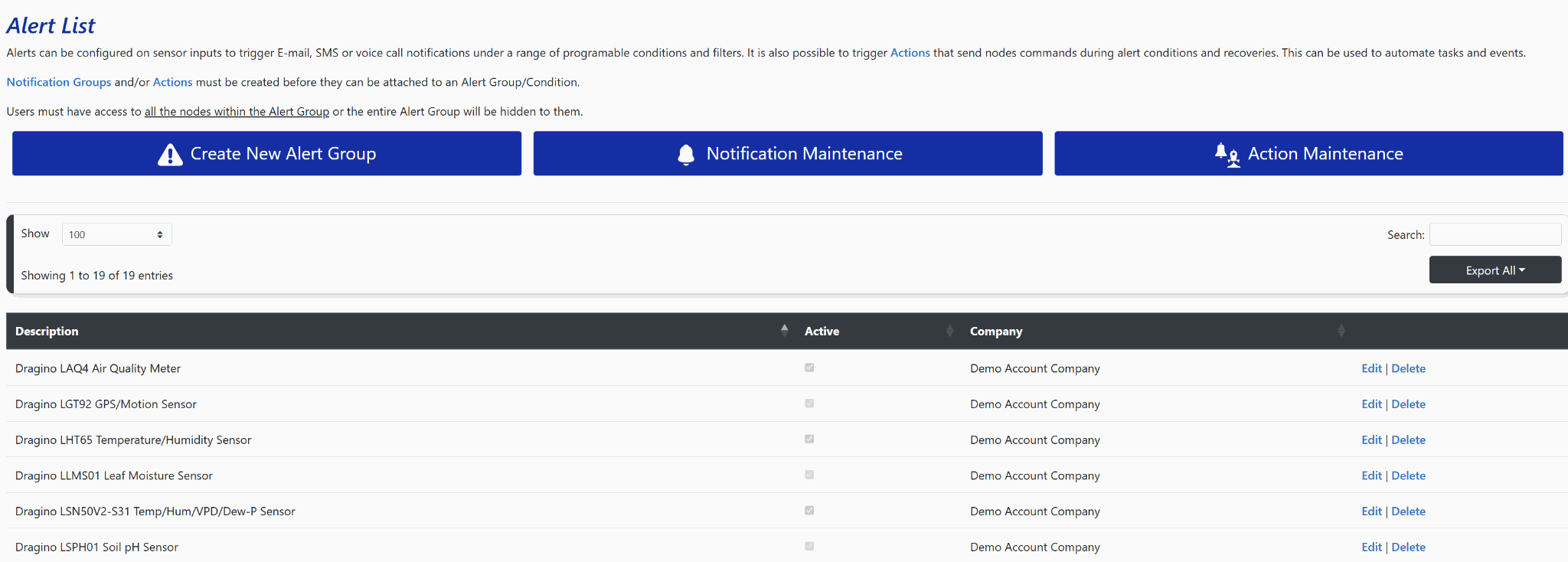
Open the main Alerts page, locate the alert group you need to change and select Edit. Use the search field when the account contains a long list of alert groups.
A user must have access to every node included in an alert group before that group is visible to them. If the expected alert group is missing, review the user's node access.
2. Enable or Disable the Entire Alert Group
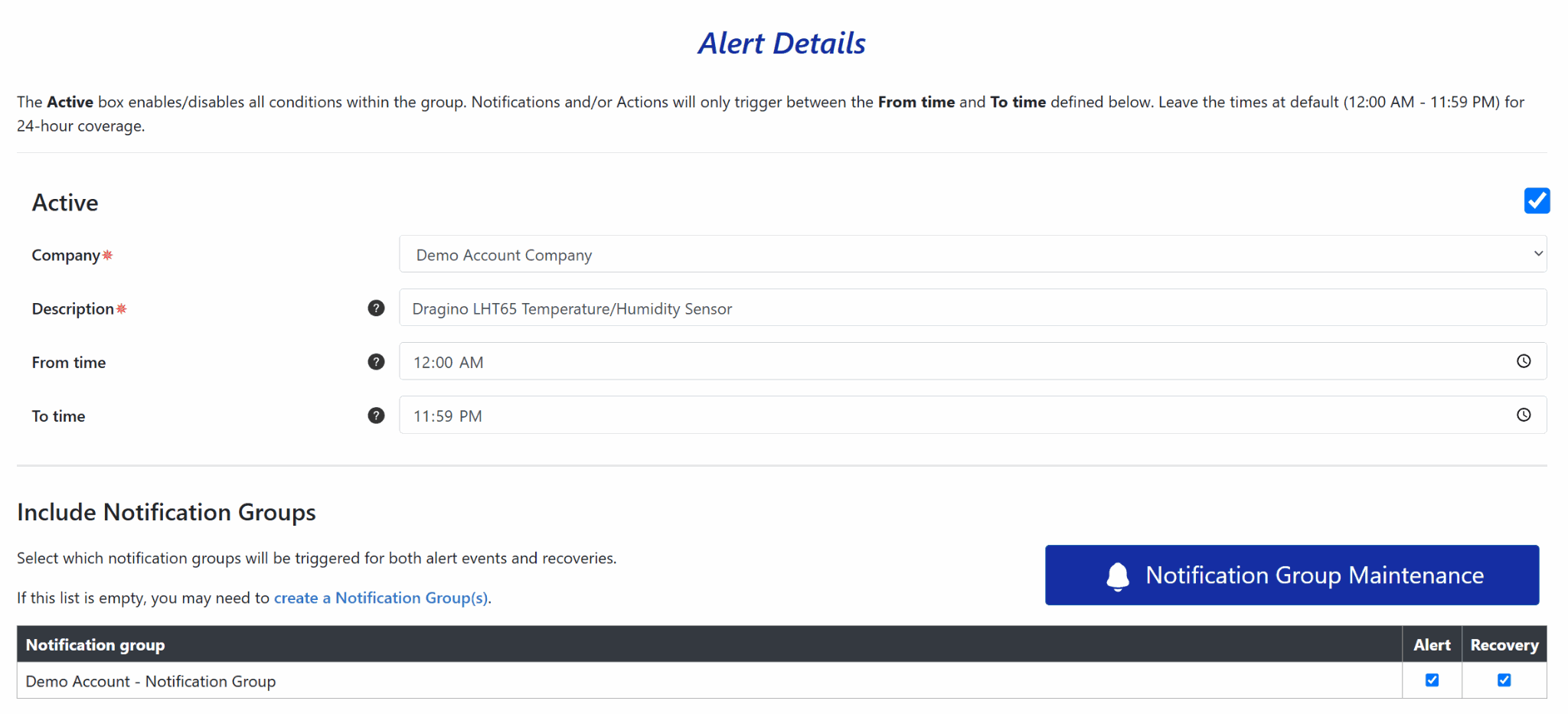
The main Active checkbox near the top of Alert Details enables or disables every condition in the group. Clear it to pause the complete group, or select it again when the alert group should resume operating.
This is the appropriate control when every condition in the alert group must stop triggering. The existing thresholds, notification groups and actions remain configured for later use.
Alert schedule: the From time and To time fields define when notifications and actions may trigger. Leave the default range of 12:00 AM to 11:59 PM when continuous 24-hour coverage is required.
3. Manage Individual Alert Conditions
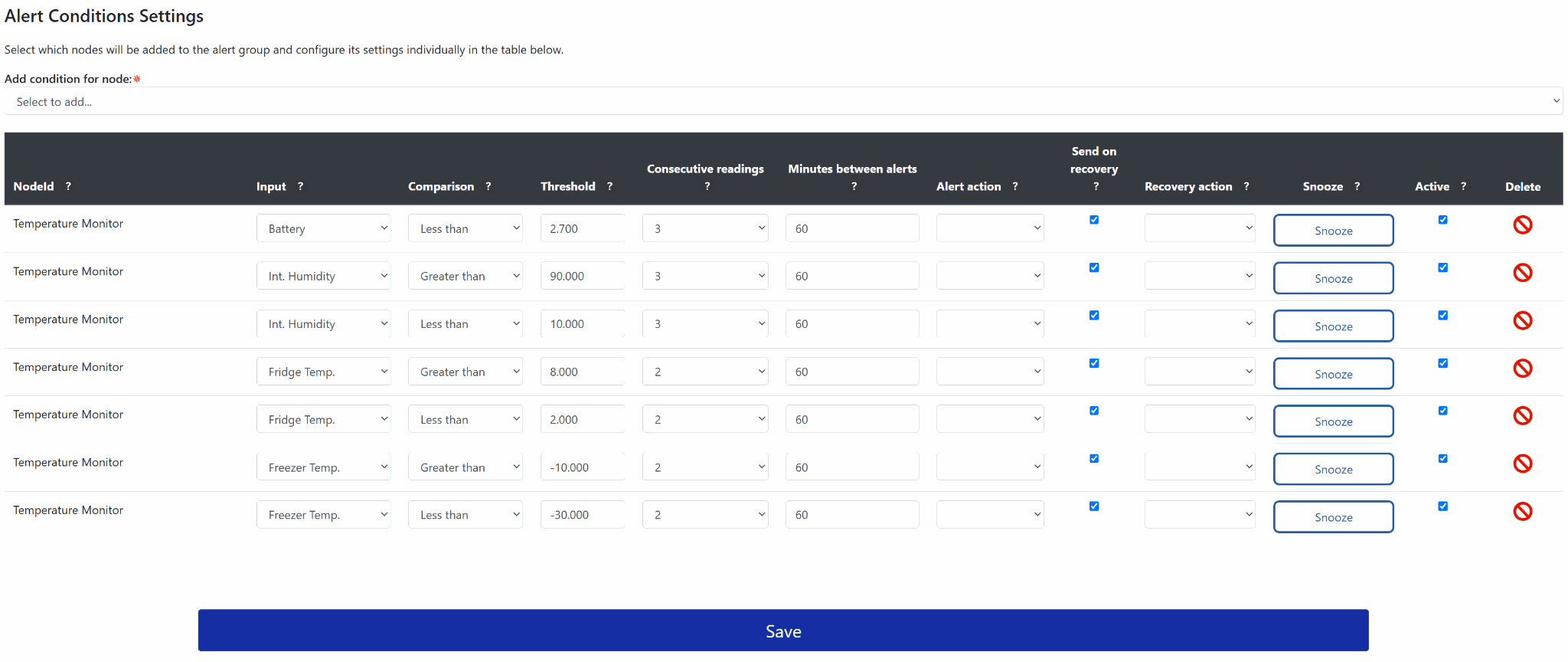
Use the controls on a condition row when only one threshold or input needs to change. Other active conditions in the alert group continue operating normally.
- Active: clear the checkbox to disable that condition indefinitely. Select it again to restore the condition.
- Snooze: temporarily disable the condition for a specified number of hours.
- Delete: select the red delete icon to permanently remove a condition that is no longer required.
Select Save after changing the persistent condition settings in the table.
Use Active or Snooze when the condition may be needed again. Use Delete only when the condition and its configuration should be removed.
4. Apply or Cancel a Timed Snooze
Snoozing is intended for a temporary interruption such as maintenance, calibration, defrosting or a service visit. The condition remains configured and resumes after the selected snooze period expires.
Apply a Snooze
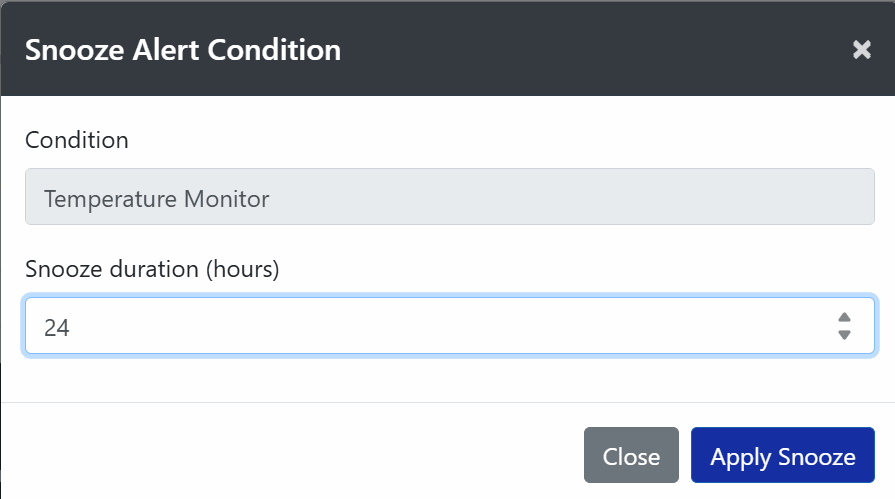
Select Snooze beside the condition, enter the required number of hours and select Apply Snooze.
Cancel a Snooze
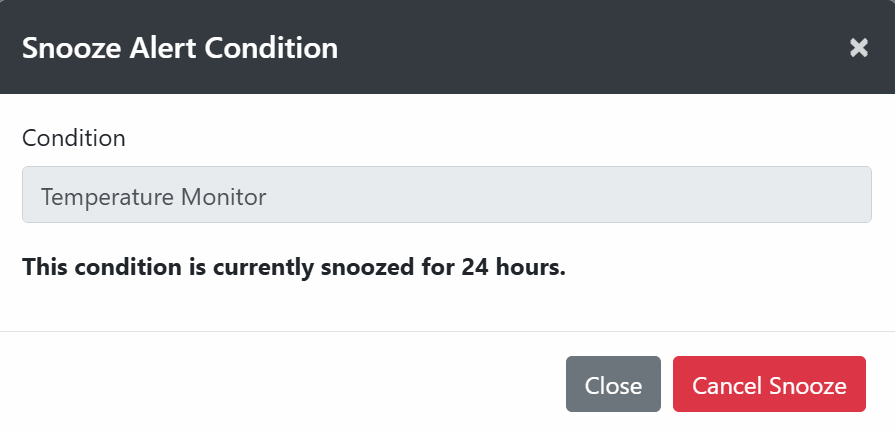
While a snooze is active, select Snooze again to view its status. Select Cancel Snooze when the condition should resume before the timer expires.
Choose the Appropriate Alert Control
Pause or restore every condition in the alert group together.
Disable one condition until an administrator manually enables it again.
Temporarily pause one condition for a defined number of hours.
Permanently remove one condition and its current configuration.