Protect and Verify Multi-Sensor Audit Data in Excel
Create a controlled multi-sensor Excel Audit Report, protect the workbook against normal worksheet changes, and independently verify the original file with a stored SHA-512 hash. Optional Excel tools can then be used on a working copy for consolidation and temperature statistics.
Protect and Verify a Controlled Multi-Sensor Excel Record
Telemetry2U Audit Reports can export raw records from several selected sensor inputs into one Excel workbook, with each input retained on its own worksheet. Two independent controls can then be used to protect the record against ordinary changes and to verify that a file remains identical to the version originally generated by Telemetry2U.
Protect Excel sheet restricts normal worksheet editing and workbook-structure changes. It is intended for workbooks that should remain as controlled records rather than working spreadsheets.
Include document verification assigns each generated PDF, CSV and Excel file a Document ID and stores its original SHA-512 hash for later integrity checking.
These controls can support controlled record-management workflows in accredited laboratories, including NATA-accredited environments, where traceability and evidence of file integrity are important. They do not by themselves establish NATA compliance; each organisation remains responsible for its own validation, access controls, review procedures and record-retention requirements.
The optional Excel macros later in this bulletin are separate analysis tools. They are intended for users who need to consolidate temperature readings or create a statistical summary, and should be used on a working copy rather than on the original file retained for verification.
An Audit Admin configures the report, protection options and selected nodes. Authorised users can then download available Audit Reports.
The supplied BAS modules use VBA and require a desktop Excel installation that permits macros. Excel for the web does not run this workflow.
Keep the original file unchanged when verification matters. Telemetry2U document verification checks whether a supplied file is byte-for-byte identical to the originally generated document. Editing, re-saving, digitally signing or running either macro changes the file and can produce a different SHA-512 hash.
1. Configure the Audit Report and Sensor Inputs
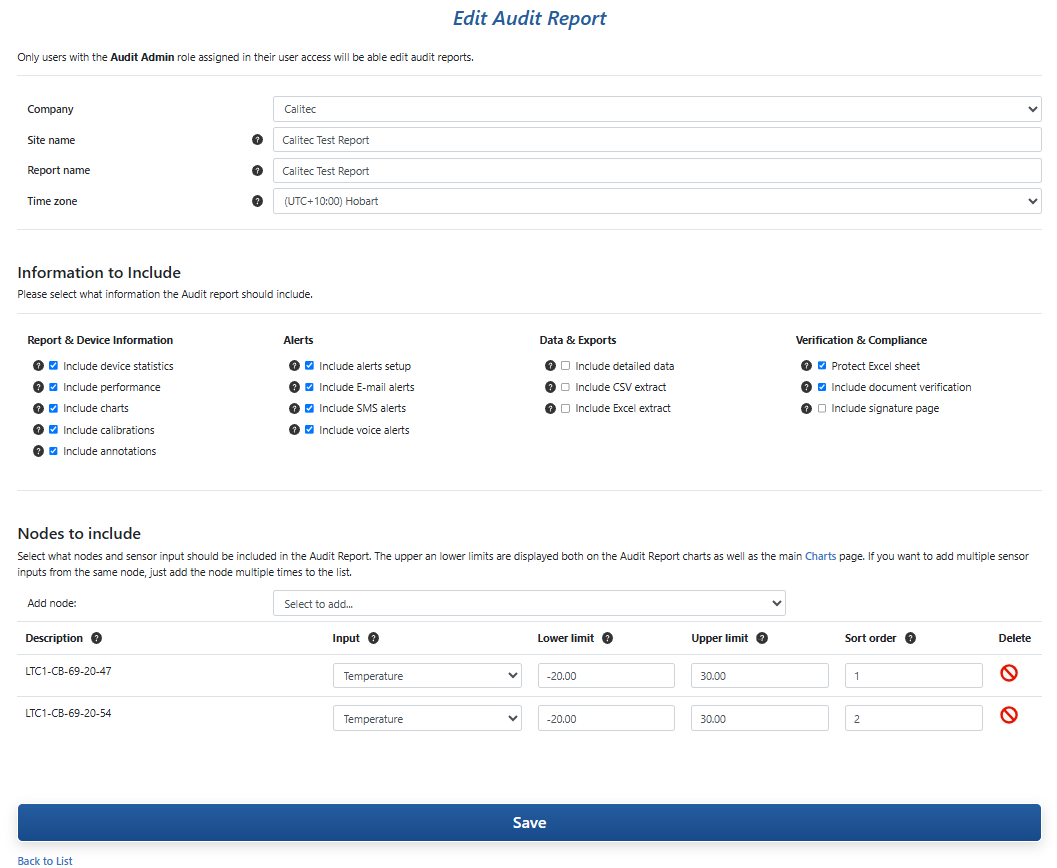
Open the required report under Audit Report Maintenance. This is where the two core controls in this workflow are enabled: Protect Excel sheet for workbook protection and Include document verification for independent SHA-512 integrity checking. The entries under Nodes to include determine which sensor inputs are exported.
- Add each required node and select the sensor input to include.
- Enable Protect Excel sheet when the downloaded Excel workbook should be protected against normal worksheet editing and workbook-structure changes.
- Enable Include document verification when generated PDF, CSV and Excel files should include a Document ID and verification link.
- Select Save after completing the report configuration.
The two controls can be used independently or together. If the workbook is intended to remain as a protected controlled record, enable both protection and document verification. If the optional macros will be used, leave Protect Excel sheet cleared, keep document verification enabled, retain the original download unchanged, and run the macros on a copy.
Using the optional macros? Leave Protect Excel sheet cleared. Both supplied macros need to create or replace worksheets, which workbook-structure protection prevents. Document verification can still be enabled for the original download.
Scheduled-report extracts: Include CSV extract and Include Excel extract control whether those raw-data files are attached when a scheduled Audit Report PDF is emailed. They are not required when a user manually selects CSV or Excel as the output format on the Download Audit Report page.
For the complete Audit Report configuration and scheduling workflow, see How to Create and Schedule an Audit Report and the Audit Reports help documentation.
2. Download the Audit Report in Excel Format
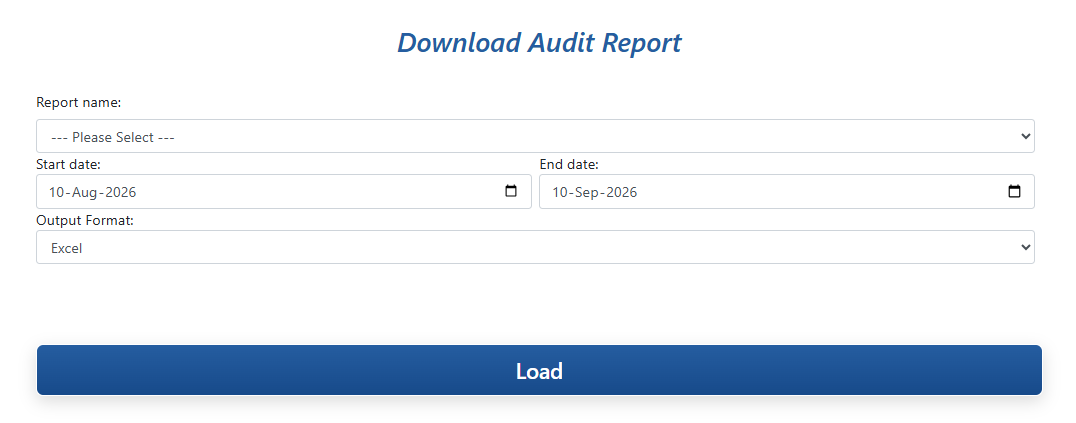
Open Download Audit Report from the platform menu, then select the saved report definition and the period to export.
- Select the required Report name.
- Set the Start date and End date.
- Select Excel as the Output Format.
- Select Load to generate and download the workbook to the local computer.
3. Review the Multi-Sensor Workbook
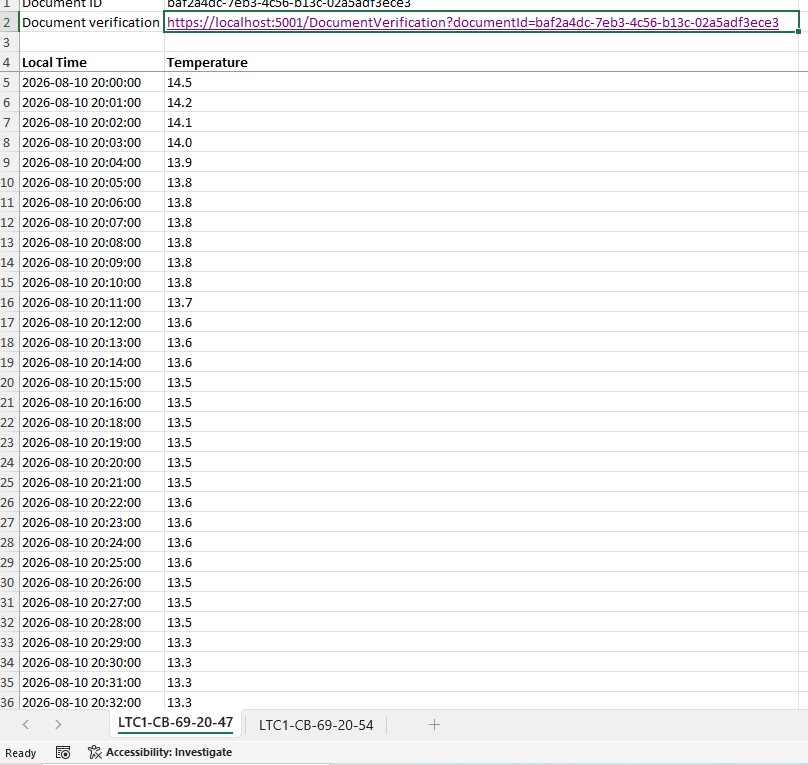
The downloaded Excel file contains one worksheet for each selected sensor input. Each sheet retains that sensor's own timestamped records inside the same workbook. When Protect Excel sheet is enabled, the workbook is protected against normal worksheet editing and workbook-structure changes.
When Include document verification is enabled, the generated file also contains a unique Document ID and verification link. Protection and verification are deliberately separate controls: protection restricts ordinary changes, while SHA-512 verification determines whether the complete file remains identical to the original generated file.
4. Verify the Original File with SHA-512
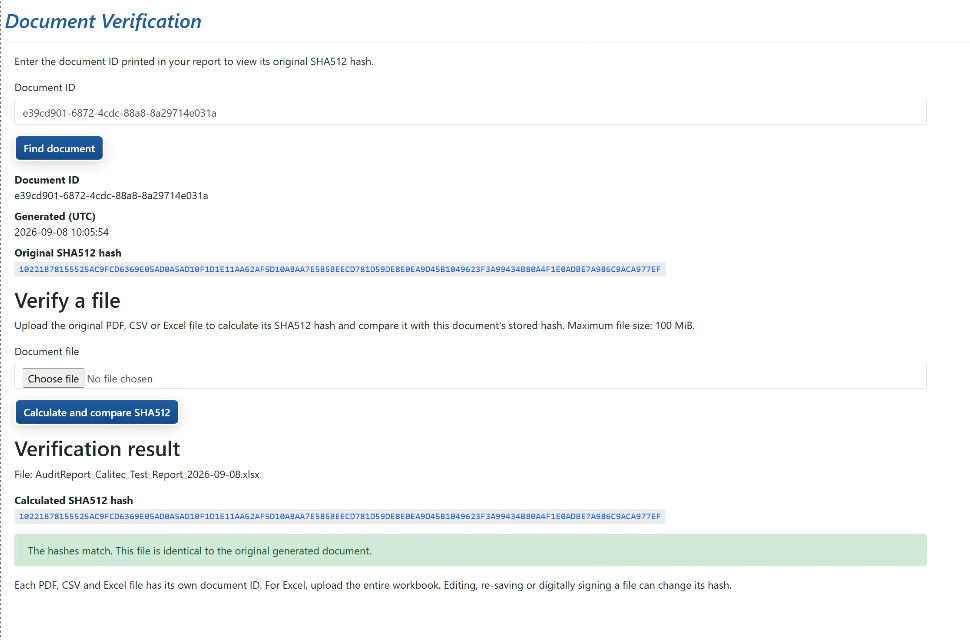
Document verification is the integrity check for the original generated file. Follow the verification link embedded in a verification-enabled PDF, CSV or Excel file to open Telemetry2U Document Verification with the Document ID supplied automatically. A Document ID can also be entered manually and located with Find document.
Telemetry2U displays the Document ID, the UTC generation time and the original SHA-512 hash stored when the file was created. To check a copy of the file:
- Select Choose file and upload the PDF, CSV or complete Excel workbook.
- Select Calculate and compare SHA-512.
- Telemetry2U calculates the uploaded file's hash and compares it with the stored original.
A matching SHA-512 result is the key integrity check. It confirms that the supplied file is byte-for-byte identical to the original document generated by Telemetry2U. Editing, re-saving or digitally signing the file can change the hash and cause the comparison to fail.
For the broader platform reference, see Audit Reports Help - Document Verification .
Recommended Controlled Record-Keeping Workflow
Choose the file-handling approach according to whether the workbook must remain protected or whether it needs to be modified for analysis. In both cases, document verification can preserve an independently checkable original record.
Enable Protect Excel sheet and Include document verification, then retain the downloaded workbook unchanged. Use the Document ID and stored SHA-512 hash whenever the original file needs to be checked. Do not run the optional macros on this file.
If the optional macros are required, leave Protect Excel sheet cleared and enable Include document verification. Keep the original download unchanged, create a separate working copy, and run the analysis tools on that copy.
This separation can be useful in laboratory quality systems, including NATA-accredited environments, because it preserves an unchanged source record while allowing derived analysis to continue separately. It does not replace the laboratory's own validation, approval, access-control or retention procedures.
5. Optional: Install the Excel Analysis Tools
Sections 5 to 7 are optional and apply only when a separate working copy is required for
analysis. Telemetry2U provides two VBA modules for desktop Excel. Installing them in
PERSONAL.XLSB makes the tools available whenever Excel is running without
embedding the macros inside each Audit Report workbook.
Combine Temperature Sensors
Creates a new Combined Data worksheet containing exact timestamps that occur on every detected temperature sensor sheet.
Generate Temperature Statistics
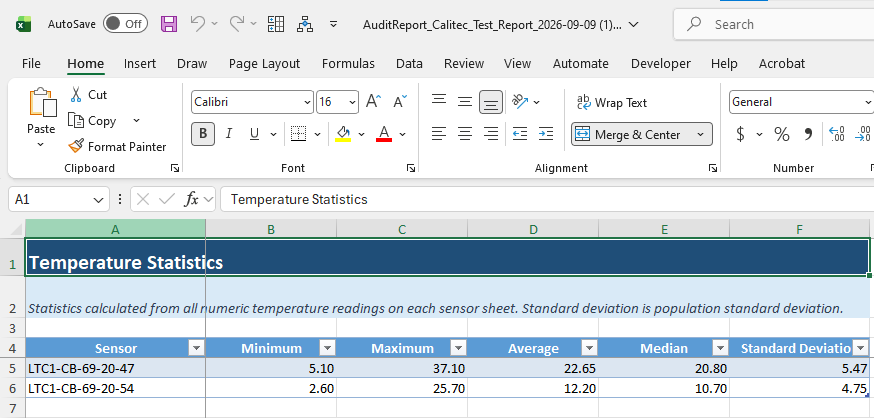
Creates a new Statistics worksheet with minimum, maximum, average, median and population standard deviation for each temperature sensor sheet.
Only enable and run VBA macros from a source approved by your organisation. Organisational Excel security policies may prevent VBA macros from running.
Create the Personal Macro Workbook if Required
If PERSONAL.XLSB does not already exist, create it once:
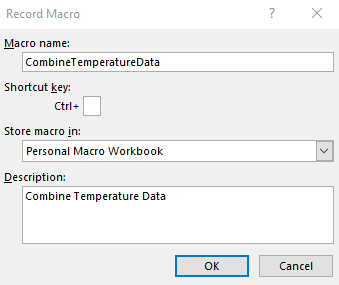
- Open Excel and select View > Macros > Record Macro.
- Enter
MyPersonalMacrosas the temporary macro name. - Under Store macro in, select Personal Macro Workbook.
- Enter Create Personal Macro Workbook as the description.
- Select OK, then immediately select Stop Recording.
The recorded placeholder macro is not used by this bulletin; its purpose is simply
to make Excel create PERSONAL.XLSB.
Import the BAS Files
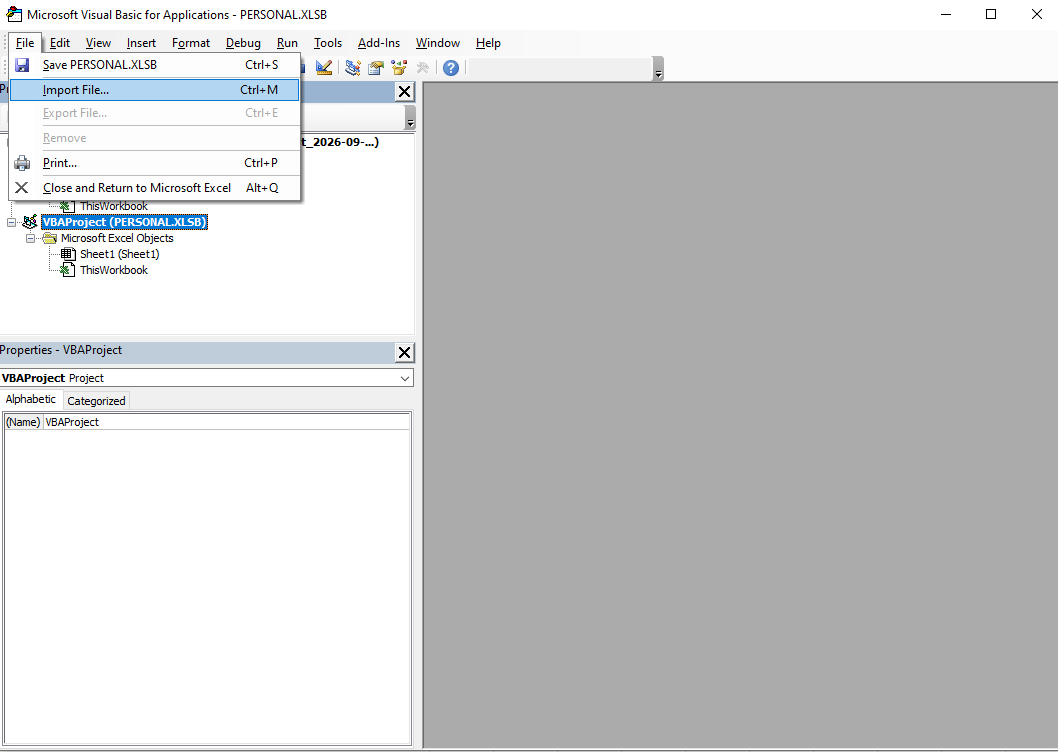
- Press Alt + F11 to open the Visual Basic Editor.
- In the Project panel, select VBAProject (PERSONAL.XLSB).
- Select File > Import File....
- Import
CombineTemperatureSensors.basand repeat the process forCreateTemperatureStatistics.bas. - Close Excel and select Save when prompted to save changes to the Personal Macro Workbook.
Add the Macros to the Quick Access Toolbar
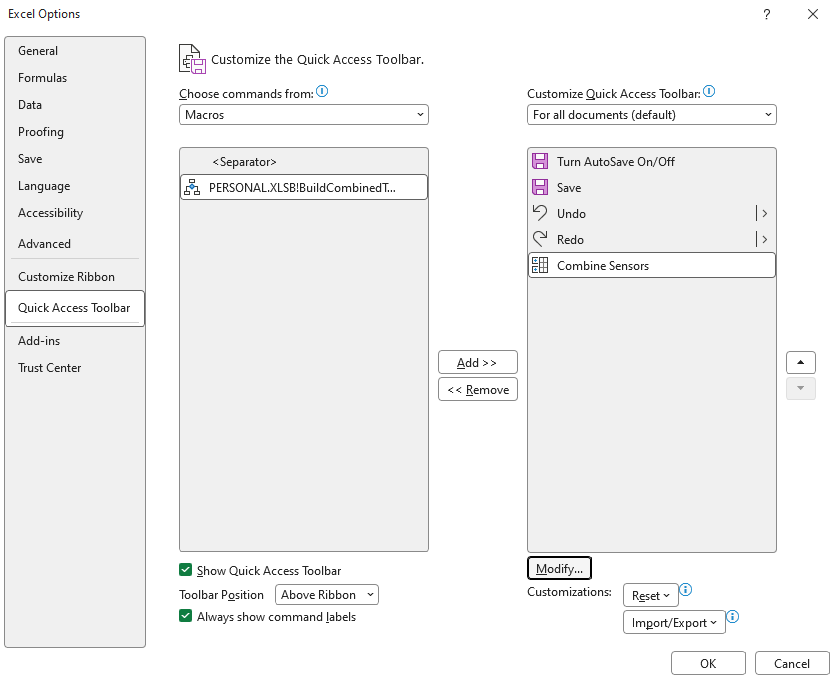
- Open File > Options > Quick Access Toolbar.
- Change Choose commands from to Macros.
- Add
PERSONAL.XLSB!BuildCombinedTemperatureSheet. - Add
PERSONAL.XLSB!BuildTemperatureStatisticsSheet. - Use Modify to select an icon and assign short labels such as Combine Sensor Data and Generate Sensor Statistics.
6. Combine Temperature Sensors onto One Worksheet
Open the unprotected working copy of the Audit Report workbook and run
BuildCombinedTemperatureSheet from the Quick Access Toolbar or the
Excel macro list. The macro works on the currently active workbook, not on
PERSONAL.XLSB itself.
The macro:
- requires at least two qualifying worksheets and finds sheets containing both Local Time and Temperature headings, regardless of which columns contain those headings;
- uses the worksheet name as the sensor name;
- keeps timestamps that occur on every detected sensor sheet;
- uses exact timestamp matches only and does not interpolate missing readings;
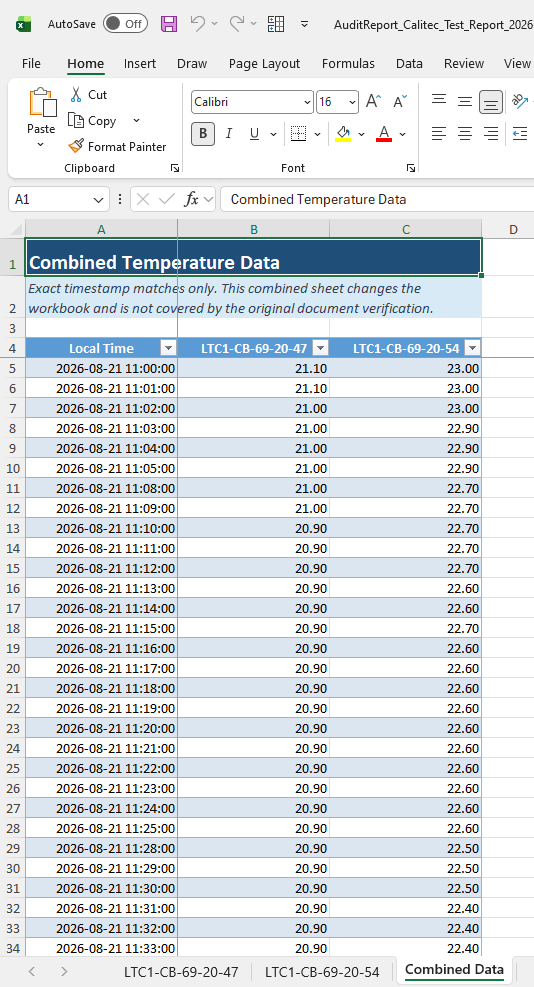
- creates or rebuilds a Combined Data worksheet;
- places Local Time in the first column and one temperature column per sensor; and
- leaves the original sensor worksheets in the workbook.
The combined sheet is a derived working record. Running the macro changes the workbook, so the modified file is not covered by the SHA-512 verification record for the original Telemetry2U-generated workbook.
7. Generate Temperature Statistics
Run BuildTemperatureStatisticsSheet to create a separate statistical
summary directly from the original temperature sensor worksheets. The macro can be
used independently of the Combined Data macro.
For every worksheet containing a Temperature heading, the macro calculates:
- Minimum
- Maximum
- Average
- Median
- Population standard deviation
The results are written to a new Statistics worksheet using the original worksheet names as the sensor identifiers. Existing Combined Data and Statistics sheets are excluded from the source calculations.